



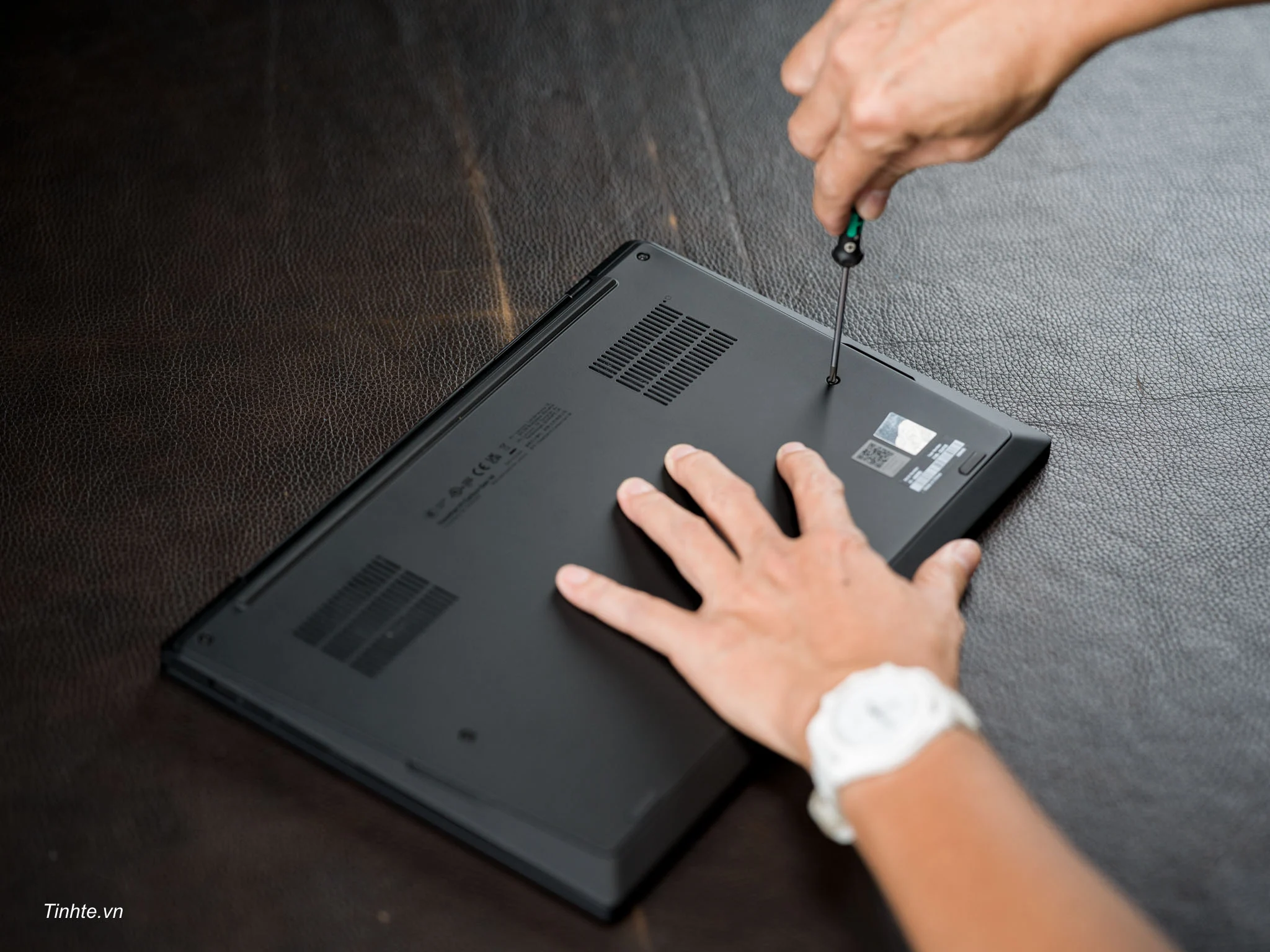

The Lenovo ThinkPad X1 Carbon Gen 14 Aura Edition features a completely redesigned Space Frame and a double-sided motherboard, increasing internal space, improving heat dissipation, and providing easier access to components. This allows for many modular parts, enabling users or IT departments to quickly replace components with just a few standard screws, including the battery, keyboard, cooling fans, speakers, USB ports (mounted on a separate board), and Wi-Fi card.
Lenovo also offers many CRUs (Customer Replaceable Units) – components that customers can replace themselves without having to send the laptop to a service center. These improvements have helped the machine achieve an iFixit score of 9/10, making it one of the easiest-to-repair premium thin and light laptops currently available, contributing to a longer lifespan, reduced maintenance costs, and greater environmental friendliness.
Please watch the video and images of my disassembly process of the X1 Carbon Gen 14 Aura Edition to understand better. I’m not a professional technician and only needed a single screwdriver with a PH0 tip. This shows how easy repair, component replacement, warranty service, and upgrades are.
Open the back cover of the device.

Surprisingly, when I took the lid off, it was incredibly light and thin.

The inside of the machine cover is lined with various padding and cushioning materials.
Unscrew the battery and remove it from the device.
After opening the back cover, I removed the battery. If you’re disassembling any laptop, the battery should probably be the first thing removed, before other electronic components. Or if your laptop accidentally gets wet, the first thing you need to remove is also the battery.
The ThinkPad X1 Carbon Gen 14 has a 58Wh battery. It runs on an Intel Panther Lake Core Ultra 7 processor, so the battery can comfortably last all day. Looking at battery reviews, I found that the X1 Carbon Gen 14 has a 58Wh battery, only slightly more than the 57Wh of the Gen 13 and Gen 12. However, thanks to the new chip, the actual battery life is 15% to 30% better than the Gen 13, or 30% to 50% better than the Gen 12… the difference also depends on the configuration and screen.
So, you get a 14-inch laptop with a 16:10 aspect ratio, weighing just over 1 kg, but still with enough battery life to comfortably last all day.
Advertisement

The 58Wh battery provides long-lasting performance thanks to the power-efficient SoC.

Remove the entire top panel of the bottom part of the machine, including the keyboard, trackpad, trackpoint, etc.
On the ThinkPad X1 Carbon Gen 14 (Aura Edition), the keyboard, trackpad (or haptic touchpad), and TrackPoint are integrated into a single unit. When disassembling, you remove the entire unit at once. Lenovo calls this unit the “Keyboard Assembly with Trackpad or Haptic Touchpad .” It’s a single, integrated module, including the keyboard, touchpad, TrackPoint, and palm rest.
To remove this unit, after removing the base cover, you only need to unscrew a few screws and disconnect three cables to lift the entire assembly. I found this process very simple; there’s no need to remove the motherboard or hinge.


The keyboard, trackpad, and TrackPoint are integrated into a single Keyboard Assembly.Thanks to the Space Frame structure, users only need to remove the bottom cover and a few screws to replace the entire assembly in 3–5 minutes—much faster and easier than previous generations. Lenovo also finds it easier to manufacture and stock FRU components. In addition, the unibody design significantly reduces gaps between parts, increasing spill resistance and preventing water from seeping deep into the motherboard. Overall, this modular solution improves both repairability and durability.
Basically, the Lenovo ThinkPad X1 Carbon Gen 14 and previous generations already had spill resistance in case of accidental spills. Now, with the new Gen 14 design, I think it will be even better.
The SSD has its own heat sink .

I just removed the heatsink from the SSD.

Before removing it, it will completely cover the SSD like this. Its purpose is to dissipate heat from the SSD.

The underside has a layer of thermal paste that helps conduct heat from the SSD upwards for dissipation.

There’s also a heatsink on the main circuit board. The SSD will be sandwiched between these two heatsinks.

The Lenovo ThinkPad X1 Carbon Gen 14 is equipped with an M.2 2280 PCIe Gen 5 SSD. This SSD supports theoretical speeds of up to 16 GB/s, with sequential read speeds of 12,000 to 14,000 MB/s and sequential write speeds of 7,000 to over 10,000 MB/s.With a seemingly well-ventilated cooling system, I think the SSD speed on this X1 Carbon Gen 14 will not degrade significantly during continuous or heavy data transfer.
Remove the USB-A and Thunderbolt 4 port modules on the left side of the machine.
The ThinkPad X1 Carbon Gen 14 is equipped with two ports on the right side: one 5 Gbps USB-A port (USB 3.2 Gen 1, Always On) and one Thunderbolt 4 port supporting speeds up to 40 Gbps. I like that the high-speed ports are on the right side because they are easier to operate with the right hand.
These two ports are mounted on a sub-board, and that sub-board is connected to the motherboard via a cable. This is a very important part because if maintenance, repair, replacement, or accidental damage occurs during use such as dropping or impact, only the sub-board needs replacing, not the main motherboard.

The circuit board when removed

This is its position relative to the machine frame.

Remove the two Thunderbolt 4 ports on the right.
The laptop has two Thunderbolt 4 ports on the left side, connected to the motherboard via pins rather than soldering. This makes replacing damaged ports easier and more cost-effective, avoiding the need to replace the entire motherboard.
The Lenovo ThinkPad X1 Carbon is designed for business professionals who value time and work efficiency. Therefore, quickly replacing ports to get the customer back to work is a top priority, rather than replacing the entire motherboard.

These are the two female Thunderbolt 4 connectors on the left side of the machine. If the machine or hard drive is dropped while plugged in, these ports are very easy to replace if damaged.

The two ends of the Thunderbolt 4 connector are located next to the two points where it will be connected to the motherboard.

The left side is where the two ends of the Thunderbold 4 are attached to the chassis.

After removing the cover that secures it on top, it can be detached with just a light press.
Remove the motherboard to connect the WWAN cable, then insert the SIM card to use mobile data.
The ThinkPad X1 Carbon Gen 14 Aura Edition is equipped with a Nano-SIM tray, similar to a phone, allowing users to insert a 4G/5G data SIM card for mobile internet connectivity anytime, anywhere without relying on Wi-Fi. The version I’m using already has a built-in SIM tray, antenna, and is WWAN-ready, but it doesn’t yet have a modem card (WWAN module).
This is an optional feature when purchasing the machine: if you choose the WWAN configuration, Lenovo will pre-install a 4G or 5G card (Snapdragon X12/X61) and support eSIM. This feature is very useful for people who frequently travel, work outdoors, or in areas without stable Wi-Fi.


Location of the WWAN board on the machine. The colored wires are antenna wires.

Removing the screws is simple.
Remove the main cooling system of the machine.
The Lenovo ThinkPad X1 Carbon Gen 14 features a new internal design called Space Frame, which allows for a 20% smaller motherboard (PCB), significantly increasing internal space. This enables an expanded cooling system with 70% larger fans compared to the previous generation (Gen 13), resulting in superior heat dissipation. The machine runs cooler, quieter, and maintains high performance over extended periods, allowing users to maximize the potential of the hardware.

This is the top view of the cooling system, the part you can see.

This is the bottom part, in the middle is the piece with the thermal paste I just removed. That part makes contact with the Intel Panther Lake Core Ultra 7 mobile SoC platform.

The cooling system is located in a position on the machine that is quite large relative to its size.

Disconnect the power supply to the cooling fan before removing it.
Remove the motherboard:
The ThinkPad X1 Carbon Gen 14 motherboard integrates a Panther Lake SoC, soldered LPDDR5X RAM, an M.2 2280 PCIe 5.0 SSD slot, and several other core components. The remaining components, such as connectors, cooling fans, speakers, battery, and keyboard, are designed in a modular (separate) form factor, making repair and replacement easier. The new Space Frame design makes the motherboard approximately 20% smaller than the Gen 13, while using a double-sided layout (components mounted on both sides) to optimize internal space.
Key components integrated on the motherboard:
- Intel Core Ultra 7 Panther Lake SoC (CPU + Arc Xe3 GPU + Integrated NPU)
- LPDDR5X RAM, soldered in – 16/24/32/64GB, not upgradeable.
- Chipset / Platform Controller (integrated in the SoC)
- M.2 2280 PCIe 5.0 x4 SSD slots
- Power management chips, audio codecs, sensors (fingerprint, TPM, etc.)
- Connect WiFi antenna 7


The gray squares at the top are RAM. The green rectangle with the core in the middle is the Intel Core Ultra 7 Panther Lake SoC.
Remove the screen from the main frame of the device.
The ThinkPad X1 Carbon Gen 14’s screen is designed as a complete unibody unit, encompassing the outer carbon fiber casing, Wi-Fi 7 and WWAN antennas, camera, microphone, sensors, and connecting cables. This screen assembly is securely attached to the chassis by two hinges, allowing for smooth, quiet, and firm opening and closing.

The 14-inch OLED display boasts a 2.8K resolution (2880 x 1800), a 16:10 aspect ratio, and a 120Hz VRR refresh rate. It features up to 500 nits of brightness (HDR), 100% DCI-P3 color gamut, Dolby Vision support, and Eyesafe Certified. The screen has an anti-glare and anti-fingerprint coating, and a screen-to-body ratio of up to 88.8%. (This screen is a bit cramped for me.)


At the top of the screen, the slightly protruding camera module consists of the following components:
- Larger main camera (10MP with 110° Immervision ultra-wide angle).
- It has a ToF (Time-of-Flight) sensor that supports intelligent Human Presence Detection.
- IR Camera for Windows Hello.
- Physical privacy shutter (a sliding door that covers the camera).
There weren’t many screws when all of them were removed.
Screws are designed to be attached to the parts they’re attached to, so there aren’t many screws or types of screws, making it easy to remember their location and type.

Here are some more images of the machine’s components:

The entire machine after being disassembled.

The hinge attaches the screen to the main body of the device.


The chassis/space frame of the ThinkPad X1 Carbon Gen 14 Aura Edition is primarily made of magnesium alloy.

It’s not too difficult to do this.

After reassembling it, the machine is still working perfectly. You can see the reassembly process in the video.

The Lenovo ThinkPad X1 Carbon Gen 14 Aura Edition features a completely redesigned Space Frame and a double-sided motherboard, increasing internal space, improving heat dissipation, and providing easier access to components. This allows for many modular parts, enabling users or IT departments to quickly replace components with just a few standard screws, including the battery, keyboard, cooling fans, speakers, USB ports (mounted on a separate board), and Wi-Fi card.
Lenovo also offers many CRUs (Customer Replaceable Units) – components that customers can replace themselves without having to send the laptop to a service center. These improvements have helped the machine achieve an iFixit score of 9/10, making it one of the easiest-to-repair premium thin and light laptops currently available, contributing to a longer lifespan, reduced maintenance costs, and greater environmental friendliness.
Please watch the video and images of my disassembly process of the X1 Carbon Gen 14 Aura Edition to understand better. I’m not a professional technician and only needed a single screwdriver with a PH0 tip. This shows how easy repair, component replacement, warranty service, and upgrades are.
Open the back cover of the device.
Surprisingly, when I took the lid off, it was incredibly light and thin.
The inside of the machine cover is lined with various padding and cushioning materials.
Unscrew the battery and remove it from the device.
After opening the back cover, I removed the battery. If you’re disassembling any laptop, the battery should probably be the first thing removed, before other electronic components. Or if your laptop accidentally gets wet, the first thing you need to remove is also the battery.
The ThinkPad X1 Carbon Gen 14 has a 58Wh battery. It runs on an Intel Panther Lake Core Ultra 7 processor, so the battery can comfortably last all day. Looking at battery reviews, I found that the X1 Carbon Gen 14 has a 58Wh battery, only slightly more than the 57Wh of the Gen 13 and Gen 12. However, thanks to the new chip, the actual battery life is 15% to 30% better than the Gen 13, or 30% to 50% better than the Gen 12… the difference also depends on the configuration and screen.
So, you get a 14-inch laptop with a 16:10 aspect ratio, weighing just over 1 kg, but still with enough battery life to comfortably last all day.
Advertisement
The 58Wh battery provides long-lasting performance thanks to the power-efficient SoC.
Remove the entire top panel of the bottom part of the machine, including the keyboard, trackpad, trackpoint, etc.
On the ThinkPad X1 Carbon Gen 14 (Aura Edition), the keyboard, trackpad (or haptic touchpad), and TrackPoint are integrated into a single unit. When disassembling, you remove the entire unit at once. Lenovo calls this unit the “Keyboard Assembly with Trackpad or Haptic Touchpad .” It’s a single, integrated module, including the keyboard, touchpad, TrackPoint, and palm rest.
To remove this unit, after removing the base cover, you only need to unscrew a few screws and disconnect three cables to lift the entire assembly. I found this process very simple; there’s no need to remove the motherboard or hinge.
The keyboard, trackpad, and TrackPoint are integrated into a single Keyboard Assembly.Thanks to the Space Frame structure, users only need to remove the bottom cover and a few screws to replace the entire assembly in 3–5 minutes—much faster and easier than previous generations. Lenovo also finds it easier to manufacture and stock FRU components. In addition, the unibody design significantly reduces gaps between parts, increasing spill resistance and preventing water from seeping deep into the motherboard. Overall, this modular solution improves both repairability and durability.
Basically, the Lenovo ThinkPad X1 Carbon Gen 14 and previous generations already had spill resistance in case of accidental spills. Now, with the new Gen 14 design, I think it will be even better.
The SSD has its own heat sink .
I just removed the heatsink from the SSD.
Before removing it, it will completely cover the SSD like this. Its purpose is to dissipate heat from the SSD.
The underside has a layer of thermal paste that helps conduct heat from the SSD upwards for dissipation.
There’s also a heatsink on the main circuit board. The SSD will be sandwiched between these two heatsinks.
The Lenovo ThinkPad X1 Carbon Gen 14 is equipped with an M.2 2280 PCIe Gen 5 SSD. This SSD supports theoretical speeds of up to 16 GB/s, with sequential read speeds of 12,000 to 14,000 MB/s and sequential write speeds of 7,000 to over 10,000 MB/s.With a seemingly well-ventilated cooling system, I think the SSD speed on this X1 Carbon Gen 14 will not degrade significantly during continuous or heavy data transfer.
Remove the USB-A and Thunderbolt 4 port modules on the left side of the machine.
The ThinkPad X1 Carbon Gen 14 is equipped with two ports on the right side: one 5 Gbps USB-A port (USB 3.2 Gen 1, Always On) and one Thunderbolt 4 port supporting speeds up to 40 Gbps. I like that the high-speed ports are on the right side because they are easier to operate with the right hand.
These two ports are mounted on a sub-board, and that sub-board is connected to the motherboard via a cable. This is a very important part because if maintenance, repair, replacement, or accidental damage occurs during use such as dropping or impact, only the sub-board needs replacing, not the main motherboard.
The circuit board when removed
This is its position relative to the machine frame.
Remove the two Thunderbolt 4 ports on the right.
The laptop has two Thunderbolt 4 ports on the left side, connected to the motherboard via pins rather than soldering. This makes replacing damaged ports easier and more cost-effective, avoiding the need to replace the entire motherboard.
The Lenovo ThinkPad X1 Carbon is designed for business professionals who value time and work efficiency. Therefore, quickly replacing ports to get the customer back to work is a top priority, rather than replacing the entire motherboard.
These are the two female Thunderbolt 4 connectors on the left side of the machine. If the machine or hard drive is dropped while plugged in, these ports are very easy to replace if damaged.
The two ends of the Thunderbolt 4 connector are located next to the two points where it will be connected to the motherboard.
The left side is where the two ends of the Thunderbold 4 are attached to the chassis.
After removing the cover that secures it on top, it can be detached with just a light press.
Remove the motherboard to connect the WWAN cable, then insert the SIM card to use mobile data.
The ThinkPad X1 Carbon Gen 14 Aura Edition is equipped with a Nano-SIM tray, similar to a phone, allowing users to insert a 4G/5G data SIM card for mobile internet connectivity anytime, anywhere without relying on Wi-Fi. The version I’m using already has a built-in SIM tray, antenna, and is WWAN-ready, but it doesn’t yet have a modem card (WWAN module).
This is an optional feature when purchasing the machine: if you choose the WWAN configuration, Lenovo will pre-install a 4G or 5G card (Snapdragon X12/X61) and support eSIM. This feature is very useful for people who frequently travel, work outdoors, or in areas without stable Wi-Fi.
Location of the WWAN board on the machine. The colored wires are antenna wires.
Removing the screws is simple.
Remove the main cooling system of the machine.
The Lenovo ThinkPad X1 Carbon Gen 14 features a new internal design called Space Frame, which allows for a 20% smaller motherboard (PCB), significantly increasing internal space. This enables an expanded cooling system with 70% larger fans compared to the previous generation (Gen 13), resulting in superior heat dissipation. The machine runs cooler, quieter, and maintains high performance over extended periods, allowing users to maximize the potential of the hardware.
This is the top view of the cooling system, the part you can see.
This is the bottom part, in the middle is the piece with the thermal paste I just removed. That part makes contact with the Intel Panther Lake Core Ultra 7 mobile SoC platform.
The cooling system is located in a position on the machine that is quite large relative to its size.
Disconnect the power supply to the cooling fan before removing it.
Remove the motherboard:
The ThinkPad X1 Carbon Gen 14 motherboard integrates a Panther Lake SoC, soldered LPDDR5X RAM, an M.2 2280 PCIe 5.0 SSD slot, and several other core components. The remaining components, such as connectors, cooling fans, speakers, battery, and keyboard, are designed in a modular (separate) form factor, making repair and replacement easier. The new Space Frame design makes the motherboard approximately 20% smaller than the Gen 13, while using a double-sided layout (components mounted on both sides) to optimize internal space.
Key components integrated on the motherboard:
- Intel Core Ultra 7 Panther Lake SoC (CPU + Arc Xe3 GPU + Integrated NPU)
- LPDDR5X RAM, soldered in – 16/24/32/64GB, not upgradeable.
- Chipset / Platform Controller (integrated in the SoC)
- M.2 2280 PCIe 5.0 x4 SSD slots
- Power management chips, audio codecs, sensors (fingerprint, TPM, etc.)
- Connect WiFi antenna 7
The gray squares at the top are RAM. The green rectangle with the core in the middle is the Intel Core Ultra 7 Panther Lake SoC.
Remove the screen from the main frame of the device.
The ThinkPad X1 Carbon Gen 14’s screen is designed as a complete unibody unit, encompassing the outer carbon fiber casing, Wi-Fi 7 and WWAN antennas, camera, microphone, sensors, and connecting cables. This screen assembly is securely attached to the chassis by two hinges, allowing for smooth, quiet, and firm opening and closing.
The 14-inch OLED display boasts a 2.8K resolution (2880 x 1800), a 16:10 aspect ratio, and a 120Hz VRR refresh rate. It features up to 500 nits of brightness (HDR), 100% DCI-P3 color gamut, Dolby Vision support, and Eyesafe Certified. The screen has an anti-glare and anti-fingerprint coating, and a screen-to-body ratio of up to 88.8%. (This screen is a bit cramped for me.)
At the top of the screen, the slightly protruding camera module consists of the following components:
- Larger main camera (10MP with 110° Immervision ultra-wide angle).
- It has a ToF (Time-of-Flight) sensor that supports intelligent Human Presence Detection.
- IR Camera for Windows Hello.
- Physical privacy shutter (a sliding door that covers the camera).
There weren’t many screws when all of them were removed.
Screws are designed to be attached to the parts they’re attached to, so there aren’t many screws or types of screws, making it easy to remember their location and type.
Here are some more images of the machine’s components:
The entire machine after being disassembled.
The hinge attaches the screen to the main body of the device.
The chassis/space frame of the ThinkPad X1 Carbon Gen 14 Aura Edition is primarily made of magnesium alloy.
It’s not too difficult to do this.
After reassembling it, the machine is still working perfectly. You can see the reassembly process in the video.